
Today, we are going to talk about the best CPU temperature monitoring software and utilities available for your computer.
If you are someone who uses a computer for work or gaming, you know how important it is to keep your CPU cool. Overheating can cause your computer to slow down, crash, and even cause permanent damage. That’s why it’s important to have a reliable CPU temperature monitor to keep track of your CPU’s temperature and prevent any potential issues.
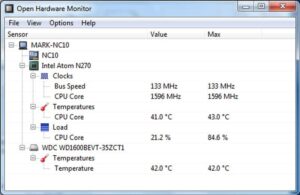
There are many CPU temperature monitoring software and utilities available on the market, each with its own unique features and benefits,which we will talk about in much more details in the continuation of the article, but as a short summary, some of the most popular options include HWMonitor, Core Temp, SpeedFan, and RealTemp.
HWMonitor is a simple and easy-to-use program that displays your CPU’s temperature, as well as other important system information such as voltage and fan speed. Core Temp is another popular option that provides real-time temperature readings for each of your CPU’s cores, as well as other useful information such as load and frequency.
SpeedFan is a more advanced program that not only monitors your CPU’s temperature but also allows you to control your computer’s fan speeds and voltages. This can be particularly useful for gamers or anyone who wants to customize their computer’s performance.
RealTemp is a specialized program designed specifically for Intel CPUs, providing accurate temperature readings and alerts to prevent overheating and damage.
No matter which CPU temperature monitoring software or utility you choose, it’s important to keep an eye on your CPU’s temperature to ensure the longevity and performance of your computer. So, make sure to download and install one of these programs today!
Why Do You Need CPU Temperature Monitoring?

CPU temperature monitoring is an essential part of computer maintenance that helps ensure the longevity and optimal performance of your system. Here are some of the main reasons why you need CPU temperature monitoring:
- Prevents overheating: Overheating is one of the most common causes of computer malfunctions and crashes. A CPU that runs too hot can damage the internal components of your computer and reduce its lifespan. Monitoring your CPU temperature can help you prevent overheating by alerting you to temperature spikes or consistently high temperatures.
- Maintains performance: CPUs that run too hot can also slow down or even shut down your computer to prevent damage. By keeping an eye on your CPU temperature and ensuring it stays within safe ranges, you can maintain the performance of your system and avoid unnecessary slowdowns or crashes.
- Helps diagnose issues: Monitoring your CPU temperature can also help you diagnose issues with your computer. If you notice that your CPU temperature is consistently high or fluctuating erratically, it could be a sign of a malfunctioning fan, clogged air vents, or other hardware issues.
- Allows for optimization: CPU temperature monitoring can also allow you to optimize your system for better performance. By identifying areas of your computer that are running hot, you can adjust your fan speeds, improve your cooling system, or even upgrade your hardware to better handle high-performance applications.
- CPU temperature monitoring is a crucial aspect of maintaining a healthy and high-performing computer system. By keeping an eye on your CPU temperature and taking action when necessary, you can extend the lifespan of your computer and optimize its performance for years to come.
Normal CPU Temperature
The normal CPU temperature range varies depending on the type of CPU and the specific model. However, as a general rule of thumb, the average temperature range for most CPUs is between 40°C to 80°C (104°F to 176°F) when under load.
It’s important to note that the ideal temperature range for your CPU will depend on several factors, including the CPU’s model, clock speed, and the type of cooling system you are using. For example, if you are using a high-performance CPU for gaming or intensive workloads, you may need to maintain a lower temperature range to prevent overheating.
Additionally, different CPUs have different “Tj Max” values, which is the maximum temperature threshold that the CPU can handle before it starts to throttle or shut down to prevent damage. It’s important to stay below this threshold to prevent damage to your CPU.
To determine the normal temperature range for your specific CPU, you can consult the manufacturer’s documentation or use a CPU temperature monitoring software from our recommendation to monitor your CPU’s temperature over time and identify its normal temperature range.
CPU Temp Monitoring Tools
1. SolarWinds CPU Load Monitor
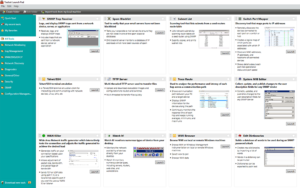
If you’re looking for a reliable and easy-to-use CPU monitoring solution, SolarWinds CPU Load Monitor is the best CPU Temp Monitor tool. This powerful software tool provides real-time CPU usage data, allowing you to monitor your system’s performance and identify any bottlenecks or issues that could be impacting your computer’s speed and reliability.
One of the standout features of SolarWinds CPU Load Monitor is its intuitive and user-friendly interface. Even if you’re not a computer expert, you can easily navigate the software and view your CPU usage in real-time, thanks to its clear and easy-to-read graphs and charts.
Another key benefit of SolarWinds CPU Load Monitor is its flexibility and customization options. You can easily configure the software to monitor specific processes or applications, set alerts for high CPU usage, and adjust the monitoring settings to meet your specific needs and preferences.
SolarWinds CPU Load Monitor is the best choice for anyone who wants to monitor their CPU usage and ensure their computer is running at peak performance. Its intuitive interface, robust feature set, and reliable performance make it a top choice for both home and business users alike.
2. HWMonitor
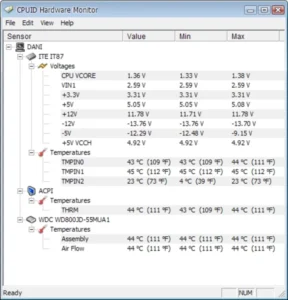
HWMonitor is another popular CPU monitoring tool that provides real-time data on your CPU temperature, voltage, and fan speeds. This CPU Temperature Monitor software tool is easy to use and provides detailed information about your system’s hardware performance, allowing you to identify any potential issues and optimize your system for peak performance.
One of the features of HWMonitor is its real-time monitoring capabilities. You can easily view your CPU temperature, voltage, and fan speeds in real-time, allowing you to quickly identify any spikes or abnormalities that could be impacting your system’s performance.
Another key benefit of HWMonitor is its comprehensive hardware monitoring capabilities. In addition to monitoring your CPU, you can also view data on your system’s motherboard, hard drive, graphics card, and other key components, giving you a complete picture of your system’s performance.
One potential downside of HWMonitor is that it can be overwhelming for novice users due to the amount of technical data it provides. However, for advanced users and enthusiasts, this level of detail can be extremely valuable in identifying potential issues and fine-tuning your system for optimal performance.
Overall, HWMonitor is a powerful and reliable CPU monitoring tool that provides real-time data on your system’s performance. Its comprehensive hardware monitoring capabilities and user-friendly interface make it a top choice for both novice and advanced users alike.
Pros:
- Real-time monitoring: HWMonitor provides real-time data on your CPU temperature, voltage, and fan speeds, allowing you to quickly identify any potential issues and optimize your system for peak performance.
- Comprehensive hardware monitoring: In addition to monitoring your CPU, HWMonitor can also provide detailed data on your motherboard, hard drive, graphics card, and other key components, giving you a complete picture of your system’s performance.
- User-friendly interface: HWMonitor’s interface is intuitive and easy to use, even for novice users. The software provides clear and easy-to-read graphs and charts, making it easy to understand your system’s performance at a glance.
- Customization options: HWMonitor allows you to configure the software to monitor specific components or applications, set alerts for high CPU usage, and adjust the monitoring settings to meet your specific needs and preferences.
- Portable version available: HWMonitor offers a portable version of the software, which can be run from a USB drive without the need for installation, making it easy to use on-the-go or on multiple computers.
Cons:
- Overwhelming amount of technical data: For novice users, the amount of technical data provided by HWMonitor can be overwhelming and difficult to interpret.
- Limited support: While HWMonitor is a reliable tool, the support options can be limited, which may be an issue for users who encounter technical problems or have questions about the software.
3. Core Temp
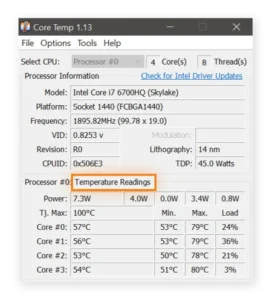
Core Temp is a popular and reliable tool for monitoring your CPU temperature and other system performance metrics. It is specifically designed to provide accurate data on individual processor cores, giving you a detailed understanding of your CPU’s performance.
One of the standout features of Core Temp is its simplicity and ease of use. The software provides clear and easy-to-read graphs and charts, making it easy to understand your system’s performance at a glance. Additionally, Core Temp is lightweight and does not consume significant system resources, making it an ideal tool for monitoring your CPU temperature while running other applications or performing resource-intensive tasks.
Another key benefit of Core Temp is its flexibility and customization options. You can configure the software to monitor specific processor cores, set alerts for high CPU usage or temperature, and adjust the monitoring settings to meet your specific needs and preferences.
However, one potential downside of Core Temp is that it may not provide as comprehensive hardware monitoring as other CPU monitoring tools, such as HWMonitor or SolarWinds CPU Load Monitor. Additionally, Core Temp may not be as suitable for novice users who may find the technical data and settings overwhelming.
Core Temp is a reliable and user-friendly CPU monitoring tool that provides accurate data on your CPU temperature and performance metrics. Its simplicity, lightweight design, and customization options make it a top choice for both novice and advanced users alike.
Features :
- Accurate temperature monitoring: Core Temp provides real-time monitoring of your CPU temperature and provides accurate readings for each individual core.
- Customizable alerts: You can set up customized alerts to notify you when your CPU temperature or usage reaches a certain threshold.
- Lightweight and low resource usage: Core Temp is a lightweight tool that does not consume significant system resources, making it an ideal tool for monitoring your CPU temperature while running other applications or performing resource-intensive tasks.
- Support for a wide range of processors: Core Temp supports a wide range of processor models, including Intel, AMD, and VIA CPUs.
- Logging and graphing: Core Temp provides logging and graphing features that allow you to review historical data on your CPU temperature and usage over time.
- Customizable interface: You can customize the interface to display the information that is most important to you, including individual core temperatures, overall CPU usage, and more.
- Portable version available: Core Temp offers a portable version of the software, which can be run from a USB drive without the need for installation, making it easy to use on-the-go or on multiple computers.
4. SpeedFan
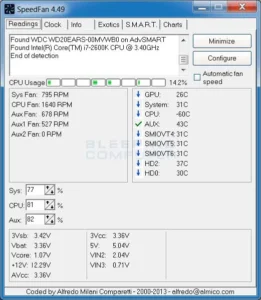
As someone who has been using SpeedFan for a while now, I must say that it is an excellent CPU temperature monitoring tool. It is user-friendly, easy to install, and offers a range of features that help keep my CPU running at optimal temperatures.
One of the things I love about SpeedFan is its real-time temperature monitoring feature. It allows me to keep an eye on my CPU temperature and adjust the fan speed accordingly to prevent overheating. I can also customize alerts for high temperatures, so I am always notified if my CPU is running too hot.
Another feature that I find useful is the ability to adjust fan speeds manually or automatically. I can set custom fan curves to adjust the fan speeds based on the CPU temperature, or I can let SpeedFan adjust them automatically based on the preset temperature thresholds.
SpeedFan also provides me with detailed information about my CPU and other system components, such as fan speeds and voltages. This information helps me identify any potential issues before they cause significant problems.
I highly recommend SpeedFan to anyone looking for a reliable and user-friendly CPU temperature monitoring tool. It is a great tool for keeping your CPU running at optimal temperatures and ensuring the health and performance of your computer.
5. RealTemp
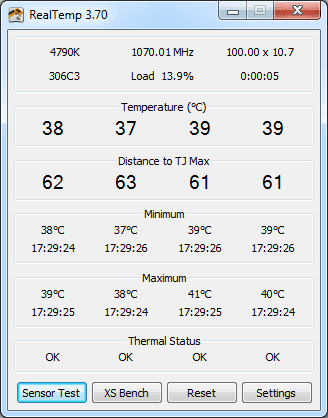
RealTemp is a free and lightweight software designed to monitor your CPU temperature and other system performance metrics. Developed by tech enthusiast and programmer Kevin Glynn, RealTemp is compatible with a range of Intel processors, including Core 2, Core i5, and Core i7.
The precision and dependability of RealTemp are two of its primary characteristics. The program offers core-by-core real-time temperature measurements so you can keep an eye on your system’s performance and spot any possible problems. RealTemp further offers a wide range of information, such as core use, clock speed, and other performance parameters, enabling you to make knowledgeable choices regarding the performance of your system.
RealTemp also offers customizable alerts, allowing you to set up notifications for high CPU temperature or other performance issues. You can configure the software to send you alerts via email or pop-up notifications, helping you to stay on top of any potential issues and ensure your system runs smoothly.
Its user-friendly interface is another noteworthy aspect. The software offers simple and easy-to-read graphs and charts that let you easily assess the functioning of your system. RealTemp is a great option for monitoring your CPU temperature while using other apps or carrying out resource-intensive tasks because it is a lightweight utility that uses little system resources.
While RealTemp is a reliable and accurate CPU monitoring tool, it may not offer as many features or customization options as other tools on the market. Additionally, it is currently only compatible with Intel processors, so if you are running an AMD processor, you may need to look for an alternative monitoring tool.
Overall, RealTemp is a simple and reliable tool for monitoring your CPU temperature and other system performance metrics. Its accuracy, user-friendly interface, and customizable alerts make it a top choice for both novice and advanced users alike.
FAQs
Is the CPU temp monitor worth it?
Yes, a CPU temperature monitor can be very useful for monitoring the health and performance of your computer. By keeping an eye on your CPU temperature, you can identify potential issues such as overheating, which can cause system crashes, performance issues, and hardware damage. Monitoring your CPU temperature can also help you optimize your computer’s performance by identifying any applications or processes that are causing your CPU to run at high temperatures.
In addition, a CPU temperature monitor can be particularly useful for gamers, content creators, or anyone who runs resource-intensive applications on their computer. These applications can place a heavy load on your CPU, causing it to run at higher temperatures than usual. By monitoring your CPU temperature, you can ensure that your system stays within safe operating temperatures and prevent any damage or performance issues.
Overall, a CPU temperature monitor is definitely worth considering if you want to keep your computer running smoothly and efficiently. Whether you are a casual user or a power user, a CPU temperature monitor can provide valuable insights into your system’s performance and help you optimize your computer for maximum performance and longevity.
How do I check if my CPU temp is accurate?
To check if your CPU temperature readings are accurate, you can use a few different methods:
Use multiple temperature monitoring tools: Use two or more CPU temperature monitoring tools to compare readings. If the temperature readings are similar, it is likely that they are accurate.
Check against manufacturer specifications: Look up the recommended operating temperatures for your CPU model on the manufacturer’s website. If the temperature readings are within this range, they are likely accurate.
Use a thermal imaging camera: A thermal imaging camera can provide an accurate and real-time measurement of the temperature of your CPU. This can be a more expensive option, but it can provide an accurate and reliable measurement of your CPU temperature.
Use a CPU stress test: Run a CPU stress test, such as Prime95, to see if your CPU temperature readings increase as expected. If the temperature readings do not increase or increase significantly, it could indicate an issue with the temperature monitoring tool.
By using one or more of these methods, you can verify the accuracy of your CPU temperature readings and ensure that your system is running within safe operating temperatures.
Why is monitoring the temperature of the processor essential?
Monitoring the temperature of the processor (CPU) is essential for several reasons:
- Preventing overheating: If a CPU runs at high temperatures for extended periods, it can lead to overheating, which can cause system crashes, hardware damage, and other issues. Monitoring the temperature of the CPU allows you to identify when it is running too hot and take steps to prevent overheating.
- Improving system performance: CPUs operate most efficiently within a specific temperature range. Monitoring the temperature of the CPU can help you identify if it is running too hot or too cold and optimize your system’s performance accordingly.
- Identifying issues: High CPU temperatures can be a symptom of various issues, such as inadequate cooling, dust buildup, or faulty hardware. By monitoring the temperature of the CPU, you can identify potential issues before they cause significant problems.
- Preventing data loss: If a CPU overheats, it can cause data loss or corruption. By monitoring the temperature of the CPU, you can ensure that your system remains stable and prevent any data loss or corruption caused by overheating.
In conclusion, monitoring the temperature of the CPU is essential for ensuring the health and performance of your computer. By keeping an eye on your CPU temperature, you can prevent overheating, optimize system performance, identify issues, and prevent data loss.
What are CPU temperature monitoring tools?
CPU temperature monitoring tools are software applications that monitor the temperature of your computer’s processor. They allow you to keep an eye on your CPU temperature and identify potential issues such as overheating, which can cause system crashes and hardware damage. These tools are essential for ensuring the health and performance of your computer.
Mention the general features of CPU temperature monitoring tools?
CPU temperature monitoring tools typically offer several features, including real-time temperature monitoring, customizable alerts for high temperatures, logging of temperature data over time, and compatibility with various CPU models. Some tools may also provide additional features such as fan speed control, system performance optimization, and benchmarking. These tools are essential for ensuring that your computer is running within safe temperatures and optimizing its performance.
How to Reduce CPU Temperature?
There are several ways to reduce CPU temperature:
- Clean your computer: Dust and debris can accumulate in your computer and prevent proper airflow, leading to higher temperatures. Regularly clean your computer’s vents, fans, and filters to keep the air flowing smoothly.
- Apply thermal paste: Thermal paste helps to transfer heat from the CPU to the heatsink. If the thermal paste is old or not applied correctly, it can lead to higher temperatures. Apply a high-quality thermal paste to the CPU to help keep temperatures down.
- Check the cooling system: Make sure that your computer’s cooling system is working correctly. Check that the fans are spinning and that the heatsinks are clean and unobstructed.
- Adjust fan speed: If your computer’s fans are running at a low speed, you may be able to increase the fan speed to reduce temperatures. You can use CPU temperature monitoring software to adjust fan speeds manually or automatically.
- Reduce overclocking: Overclocking your CPU can increase performance but also increases temperatures. Consider reducing your CPU’s overclocking settings to lower temperatures.
- Improve airflow: Consider adding additional fans or upgrading to a more efficient cooling system to improve airflow and reduce temperatures.
By taking these steps, you can reduce your CPU temperature and prevent overheating, which can lead to system crashes and hardware damage.


